How to save your CV as a PDF
You spent an evening on the layout of your CV, and the recruiter opens it on a phone with other fonts: the lines move, a page breaks in the middle of a job. A PDF looks the same on every computer and phone and cannot be changed by accident. That is why most job ads ask for a CV in PDF.
From Word to PDF in your browser
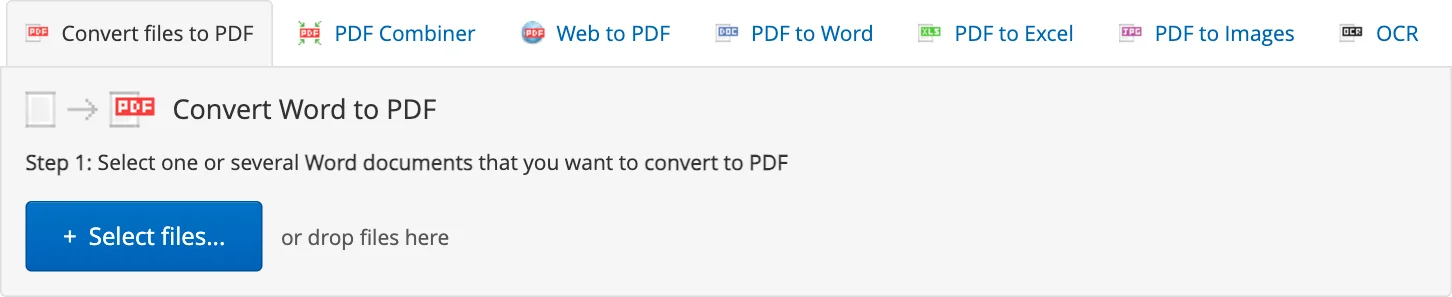
- Open Word to PDF and press Select files..., or drop your CV onto the converter. DOC, DOCX, RTF, ODT and Apple Pages documents work.
- Press Start!. The PDF keeps the fonts, the columns, the photo and the tables of your CV.
- Press Download next to the PDF in your Inbox, open it and check every page.
You don't need Microsoft Word for it, and it works on a phone too.
CV and cover letter in one file
Some application forms take a single file. Put the cover letter, the CV and your certificates into the PDF Combiner, set the order and get one PDF. Scanned diplomas and photos of certificates can go into the same file.
Before you send it
- Name the file with your name and the role, for example Anna-Smith-CV-Accountant.pdf, not CV-final-2.pdf.
- Keep the Word file: edit the Word version and make a new PDF for every application.
- Check that the links to your portfolio or profile still open in the PDF.
- Got a CV only as a PDF and need to change it? Convert it back with PDF to Word.
Free version and Premium
The free version gives the first 2 pages of the document plus a trial page. For a CV you send out, use Premium, which converts complete documents.
What happens to your files
Files travel over an encrypted HTTPS connection and are stored for up to 6 hours, then deleted automatically. Delete in the Inbox removes a file immediately. Details are in our Terms & Privacy Policy.