How to combine several JPG images into one PDF
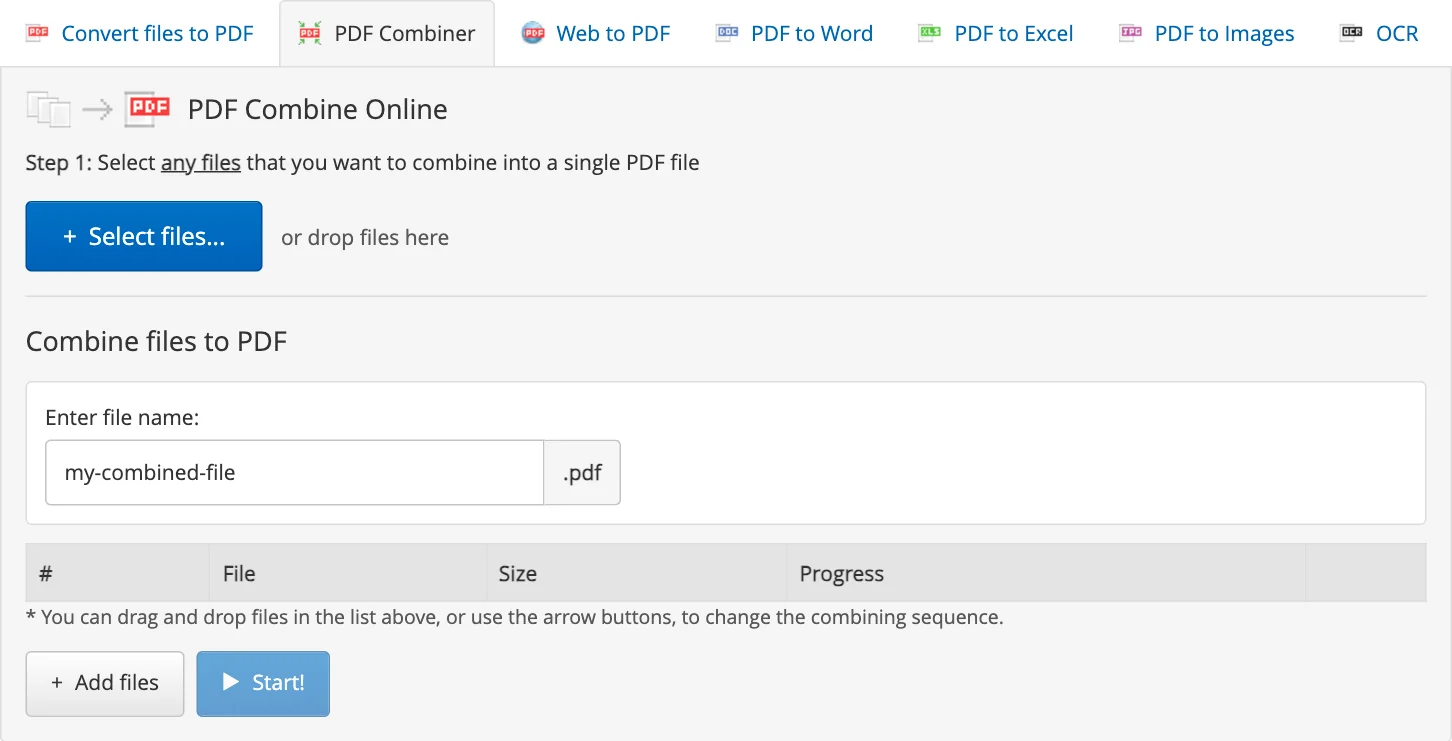
Photos of receipts for your accountant, pages of a document shot with a phone, a set of screenshots for a report: images often belong together. One PDF is easier to send, open and print than a dozen separate JPG files, and the pages stay in the order you chose.
One PDF from several images
- Open the PDF Combiner and press Select files..., or drop the images onto it. Add more with Add files. JPG, PNG, GIF, BMP, TIFF and TGA images work, up to 100 MB each.
- Put the images in order: drag them in the list or use the arrow buttons. Every image becomes a page, in this order.
- Type a name for the PDF, or keep the suggested my-combined-file.
- Press Start! and download the PDF from your Inbox. It stays there for 6 hours.
You can mix the images with PDF files and Word, Excel or PowerPoint documents in the same PDF, for example a cover letter followed by scanned certificates.
A PDF for each image instead
If every photo should stay a file of its own, use JPG to PDF: each image becomes a separate PDF.
Tips
- Crop and rotate the photos on your phone first, so the pages are upright and without the table around them.
- Name the files 01, 02, 03... before you upload them: they are then easy to put in order.
- Need the text of a photographed page, not just a picture of it? OCR turns it into an editable Word document.
Free version and Premium
No account is needed to try it: the free version combines 2 files and adds trial pages at the end of the PDF. Premium combines up to 100 files in one PDF, without trial pages.
What happens to your files
Files travel over an encrypted HTTPS connection and are stored for up to 6 hours, then deleted automatically. Delete in the Inbox removes a file immediately. Details are in our Terms & Privacy Policy.