How to save a webpage to PDF with Docs.Zone
Updated · first published
Web pages change and disappear. A PDF keeps a copy of an article, a receipt, a booking or a price list as it looked on the day you saved it, and you can read it offline, print it or attach it to an e-mail.
Saving a web page as PDF
- Copy the address of the page from your browser's address bar.
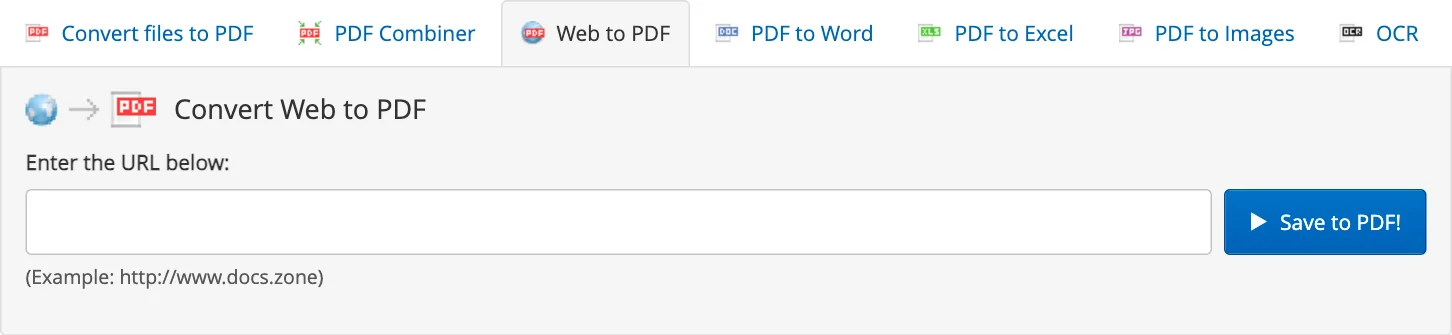
- Open Web to PDF and paste the address into the field. It starts with http:// or https://.
- Press Save to PDF!. A few seconds later the PDF with the page's text and images appears in your Inbox.
- Press Download next to it. It stays in the Inbox for 6 hours.
What can't be saved
Our server opens the page as an anonymous visitor. Pages behind a login (your mailbox, online banking, a paywalled article) and pages in a private network show only what an anonymous visitor would see, or nothing at all. For such pages, use your browser's own Print and choose Save as PDF.
Free version and Premium
No account is needed to try it: the free version saves the first 2 pages of the PDF plus a trial page. Premium saves the whole page.
To put several saved pages into one file, use the PDF Combiner.
What happens to your files
Files travel over an encrypted HTTPS connection and are stored for up to 6 hours, then deleted automatically. Delete in the Inbox removes a file immediately. Details are in our Terms & Privacy Policy.