How to convert PDF to Word with Docs.Zone
Updated · first published
A typo in a contract, new figures in a report, and only the PDF at hand. Instead of waiting for the original file, turn the PDF into an editable Word document (DOCX): paragraphs, tables, columns and images become ordinary Word elements.
Converting a PDF to Word
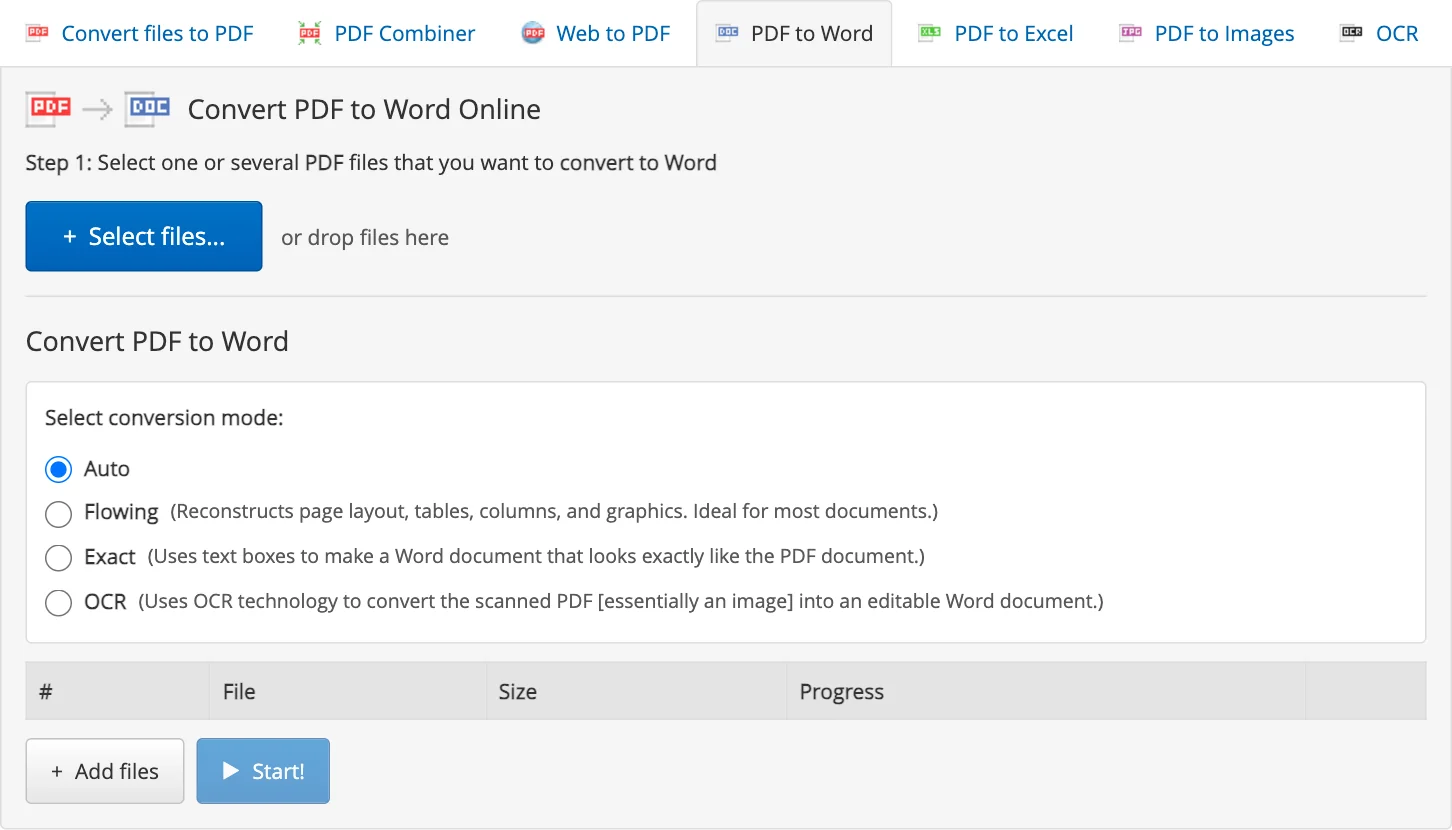
- Open PDF to Word and press Select files..., or drop your PDF files onto the converter.
- Choose a conversion mode. Auto suits most documents.
- Press Start!. The Word documents appear in your Inbox under the converter.
- Press Download next to a file. It stays in the Inbox for 6 hours.
Which mode to choose
- Auto: the converter chooses the method for your document.
- Flowing: recreates paragraphs, tables, columns and graphics. Best for documents you want to edit.
- Exact: uses text boxes, so the document looks exactly like the PDF. Good for forms and complex layouts you only need to touch up.
- OCR: for scanned PDFs, which are pictures of pages. Choose up to two languages of the document: English, French, German, Italian, Portuguese, Russian and Spanish. It takes about 20-30 seconds per page.
If the text of the Word document comes out garbled or missing, the PDF is probably a scan: convert it again in the OCR mode. More about scans in How to convert a scanned PDF to editable Word text.
Free version and Premium
No account is needed to try it: the free version converts up to 2 files at a time, and each document has the first 2 pages plus a trial page. Premium converts complete documents.
When the edits are done, make a PDF again with Word to PDF.
What happens to your files
Files travel over an encrypted HTTPS connection and are stored for up to 6 hours, then deleted automatically. Delete in the Inbox removes a file immediately. Details are in our Terms & Privacy Policy.